> ## Documentation Index
> Fetch the complete documentation index at: https://docs.getsendbase.com/llms.txt
> Use this file to discover all available pages before exploring further.
# Create AWS Account
> Learn how to create an AWS account
## Create an AWS account
Follow these steps to create and activate your new AWS account.
### Initial setup
1. Visit the [AWS home page](https://aws.amazon.com/).
2. Choose **Create account**.
3. Enter your root user email address.
4. Create and confirm your password.
### Account information
1. Select **Personal or Business** for your account.
2. Enter your contact information.
3. Accept the [AWS Customer Agreement](https://aws.amazon.com/agreement/).
If you select Business, you should avoid individual email address. For
example, `it.admins@example.com` is better than `paulo.santos@example.com`.
### Payment setup
1. Add a [valid payment method](https://console.aws.amazon.com/billing/home#/paymentmethods).
2. Verify your billing address.
### Identity verification
1. Enter your phone number.
2. Receive and enter the verification code.
3. If there's a CAPTCHA, then enter the displayed code and choose **Submit**.
4. If you're an India-based account, [then complete additional verification if required](https://docs.aws.amazon.com/awsaccountbilling/latest/aboutv2/manage-account-payment-aispl.html).
### Choose a support plan
1. Select from [available AWS Support plans](https://aws.amazon.com/premiumsupport/features).
2. Choose **Complete sign up**.
Account activation typically takes minutes, but it can take up to 24 hours.
When account activation is complete, you receive a confirmation email.
## Best practice
### Enable MFA for root user
After creating your AWS account, enable multi-factor authentication (MFA) for your root user to add an extra layer of security.
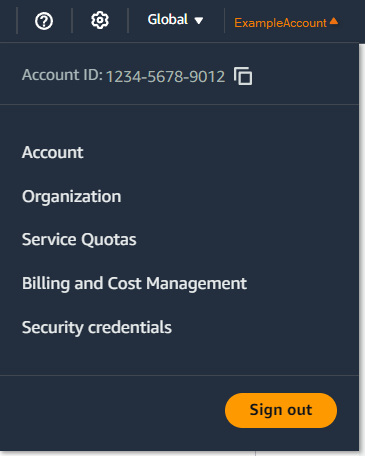 1. Sign in to the [AWS Management Console](https://console.aws.amazon.com/) using your root user credentials.
2. On the right side of the navigation bar, choose your account name and select **Security credentials**.
3. In the **Multi-Factor Authentication (MFA)** section, choose **Assign MFA device**.
4. Type a **Device name**, choose **Authenticator app**, and select **Next**.
5. Configure your authenticator app:
* Open your virtual MFA app (such as Google Authenticator, Microsoft Authenticator, or Authy)
* Select **Show QR code** and scan it with your app, or select **Show secret key** to manually enter it
6. Complete the registration:
* Enter the six-digit code from your app in the **MFA code 1** box
* Wait up to 30 seconds for a new code to generate
* Enter the new code in the **MFA code 2** box
* Choose **Add MFA**
Securely backup the QR code or secret key. If you lose access to your MFA
device and have no backup MFA devices, you may be locked out of your account
and need to contact AWS Support.
## Additional resources
* [How do I create and activate a new AWS account?](https://youtu.be/lIdh92JmWtg?si=SEzOchi-1lmPvshY)
1. Sign in to the [AWS Management Console](https://console.aws.amazon.com/) using your root user credentials.
2. On the right side of the navigation bar, choose your account name and select **Security credentials**.
3. In the **Multi-Factor Authentication (MFA)** section, choose **Assign MFA device**.
4. Type a **Device name**, choose **Authenticator app**, and select **Next**.
5. Configure your authenticator app:
* Open your virtual MFA app (such as Google Authenticator, Microsoft Authenticator, or Authy)
* Select **Show QR code** and scan it with your app, or select **Show secret key** to manually enter it
6. Complete the registration:
* Enter the six-digit code from your app in the **MFA code 1** box
* Wait up to 30 seconds for a new code to generate
* Enter the new code in the **MFA code 2** box
* Choose **Add MFA**
Securely backup the QR code or secret key. If you lose access to your MFA
device and have no backup MFA devices, you may be locked out of your account
and need to contact AWS Support.
## Additional resources
* [How do I create and activate a new AWS account?](https://youtu.be/lIdh92JmWtg?si=SEzOchi-1lmPvshY)